Note: The instructions are recommended and only apply if only SSO (without user provisioning) is to be set up. If you want to implement SSO and user provisioning (SCIM) with Entra ID, an enterprise app with SAML must be set up. We will do this in a joint session. Please contact us at support@tutool.io.
Integrating Microsoft Entra ID (formerly Azure AD) with Tutoolio LMS is a quick and straightforward process. We use Keycloak on our side to manage identity federation securely and efficiently. To get started, we just need a few details from your side — all further setup within Keycloak will be handled entirely by Tutoolio.
User → Tutoolio LMS (SP) → Keycloak (Broker) → Entra ID (IdP)
Please follow the steps below and provide the requested information once done.
Step 1: Register a New Application
1. Go to the Azure Portal
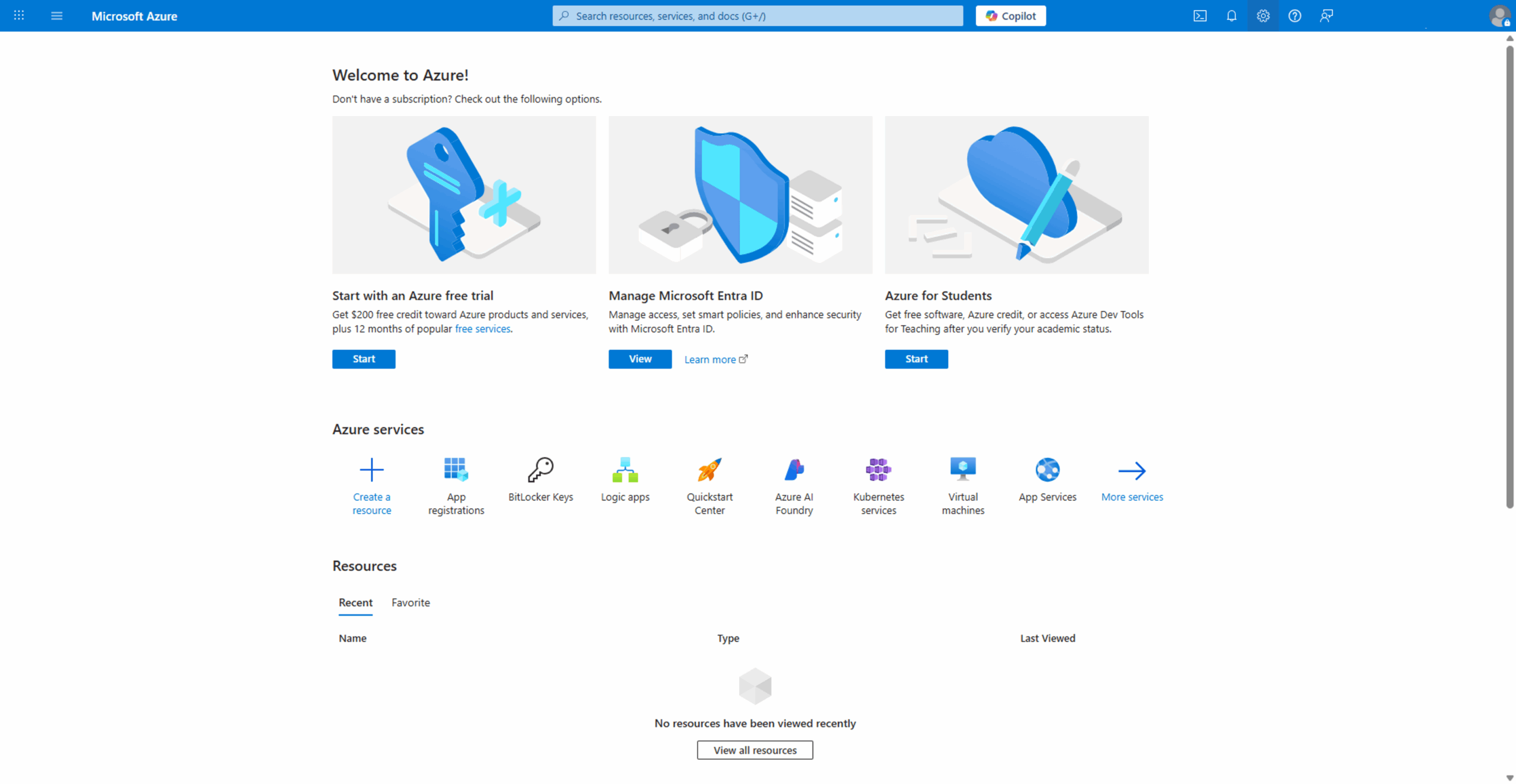
2. Navigate to: Microsoft Entra ID > App registrations > + New registration
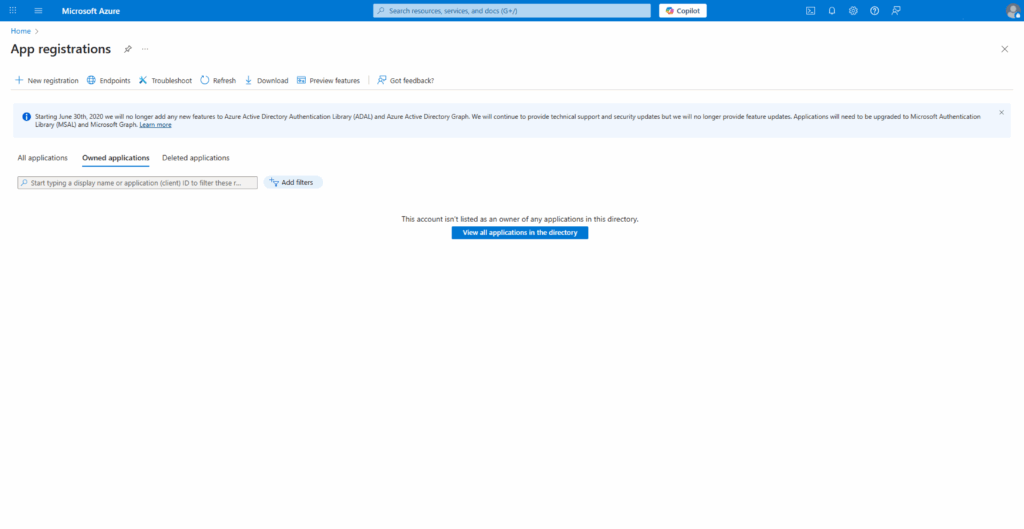
3. Fill out the form to register the Tutoolio LMS as a new app:
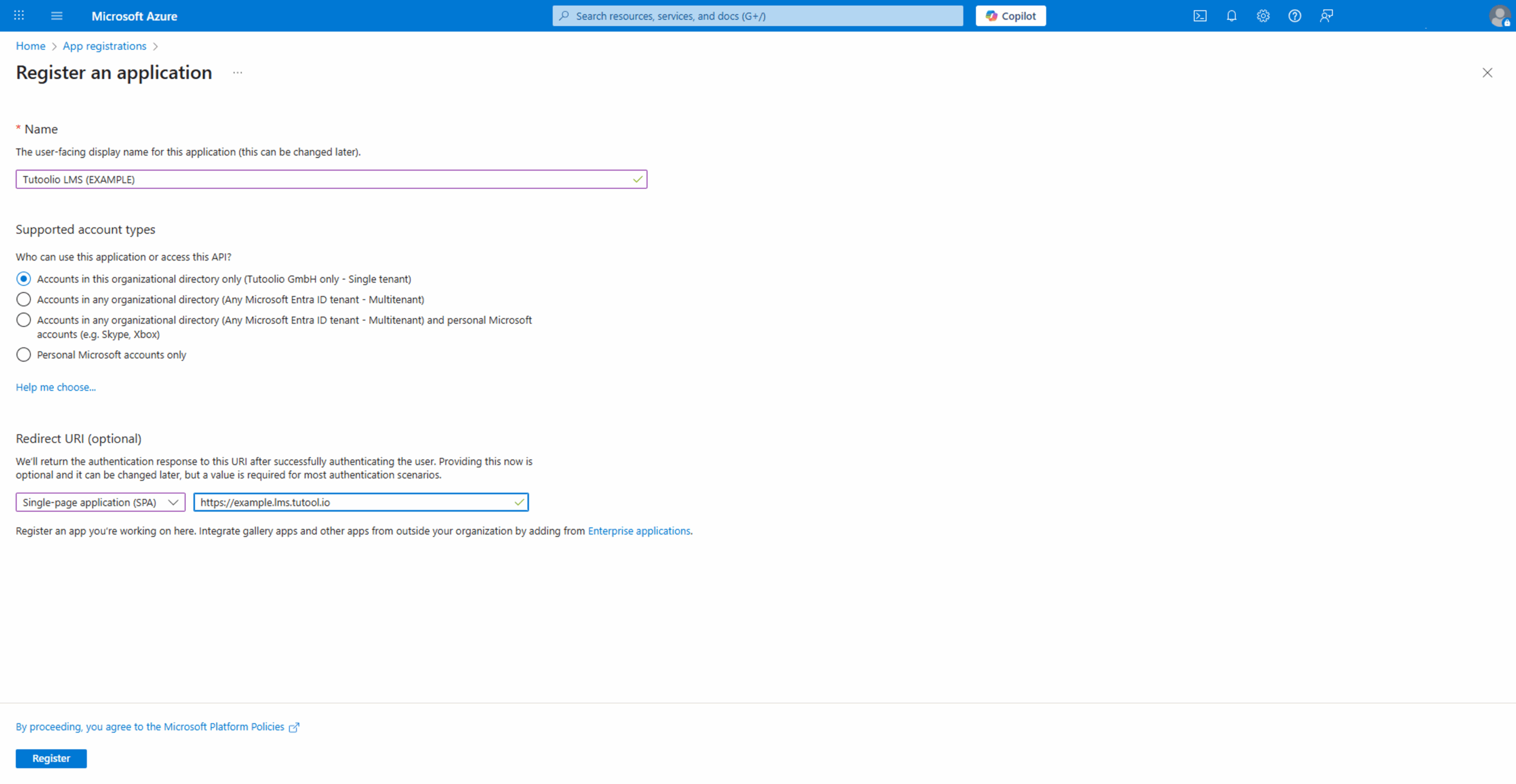
3.1 Fill in a name: Tutoolio LMS (or similar)
3.2 Choose the supported account types:Accounts in this organizational directory only
3.3 Choose the platform for redirect uri:Single-Page-Application (SPA)
3.4 Enter the redirect uri:Enter the URL of your tenant provided by Tutoolio:
Example: https://my-tenant.lms.tutool.io
4. Click Register
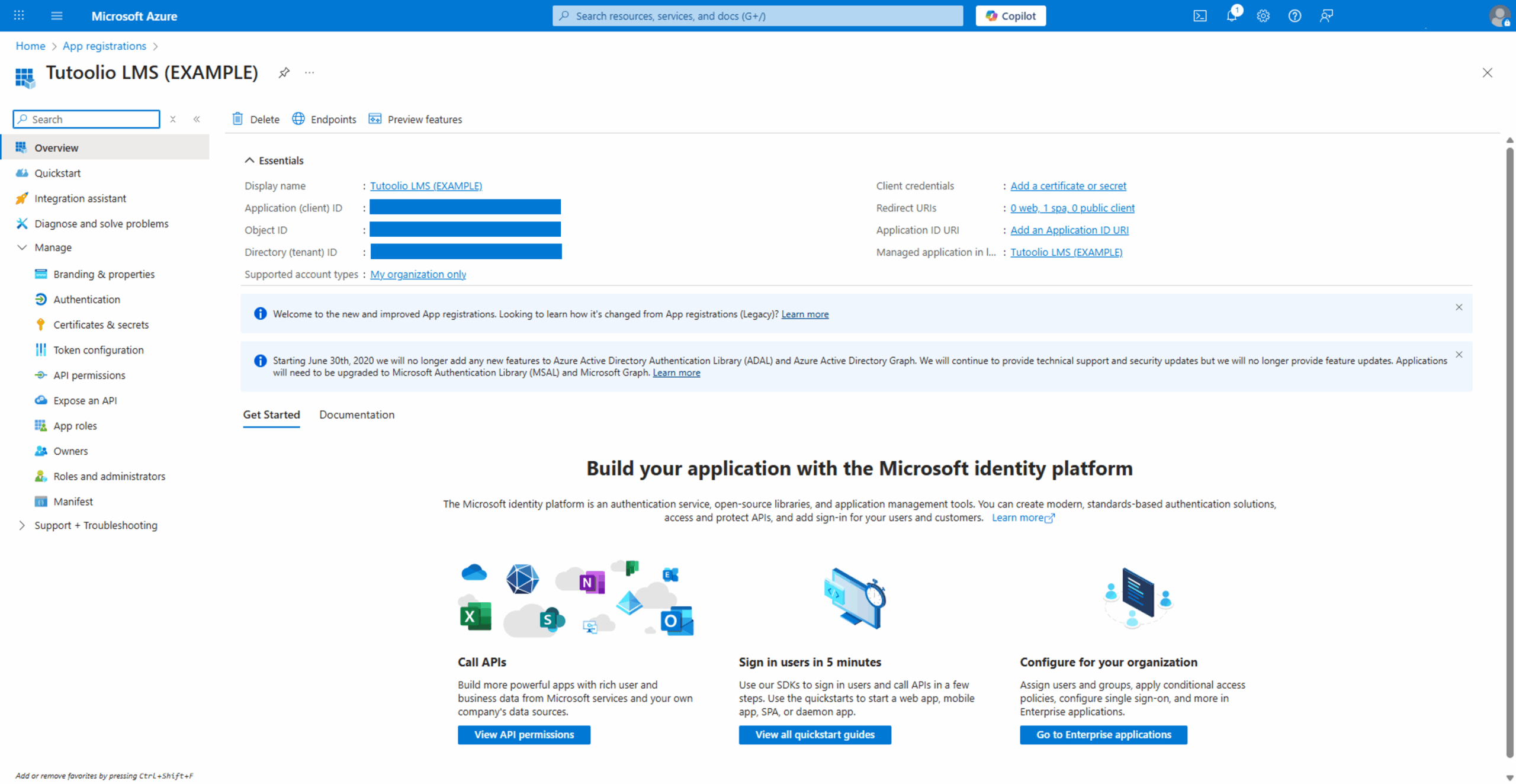
5. Please send us:
- Client ID (Application ID)
- Tenant ID (Directory ID)
Step 2: Create a Client Secret
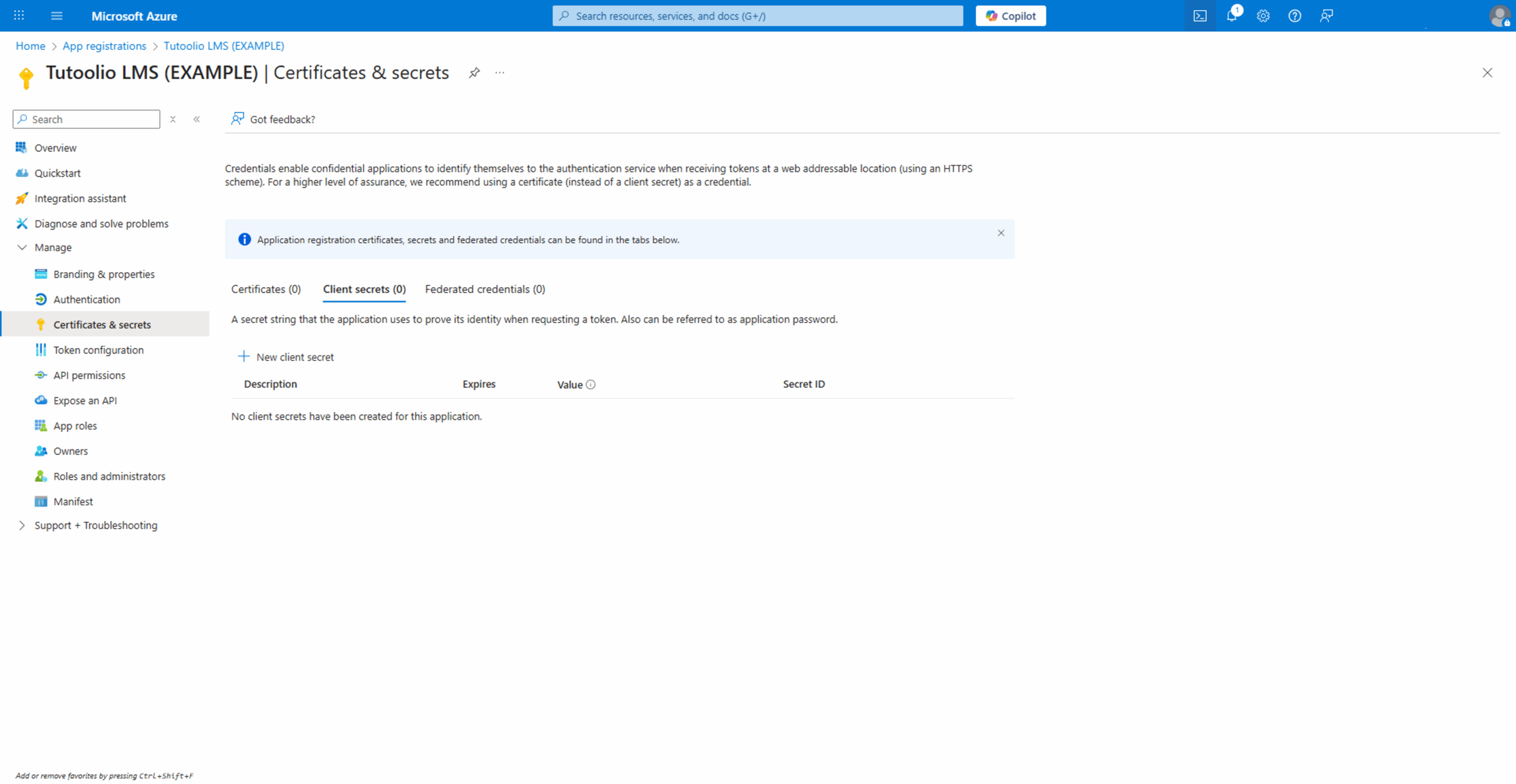
1. In the new app, go to: Certificates & secrets > Client secrets > + New client secret
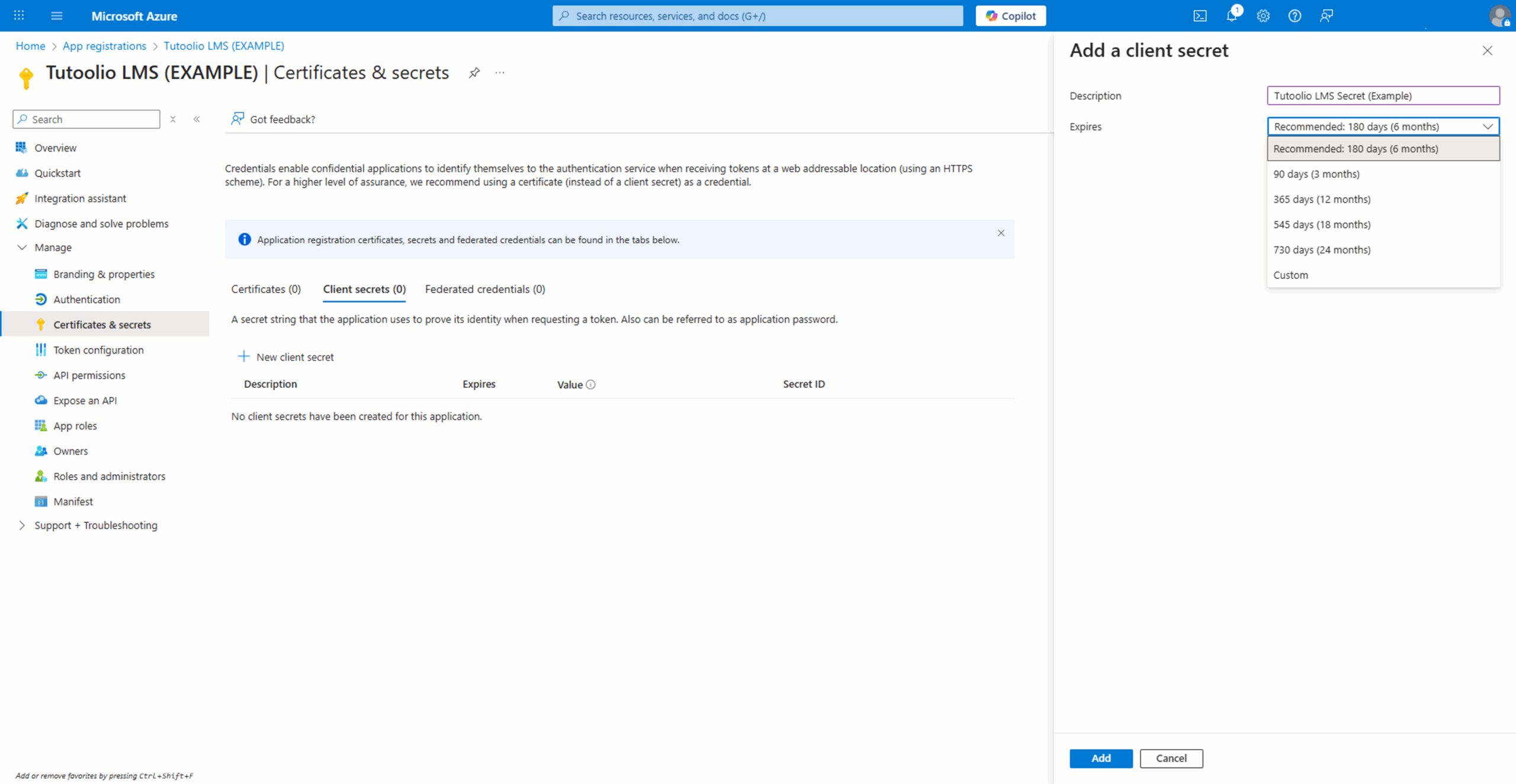
2. Add a description (e.g., „Tutoolio LMS Secret“) and choose a validity period
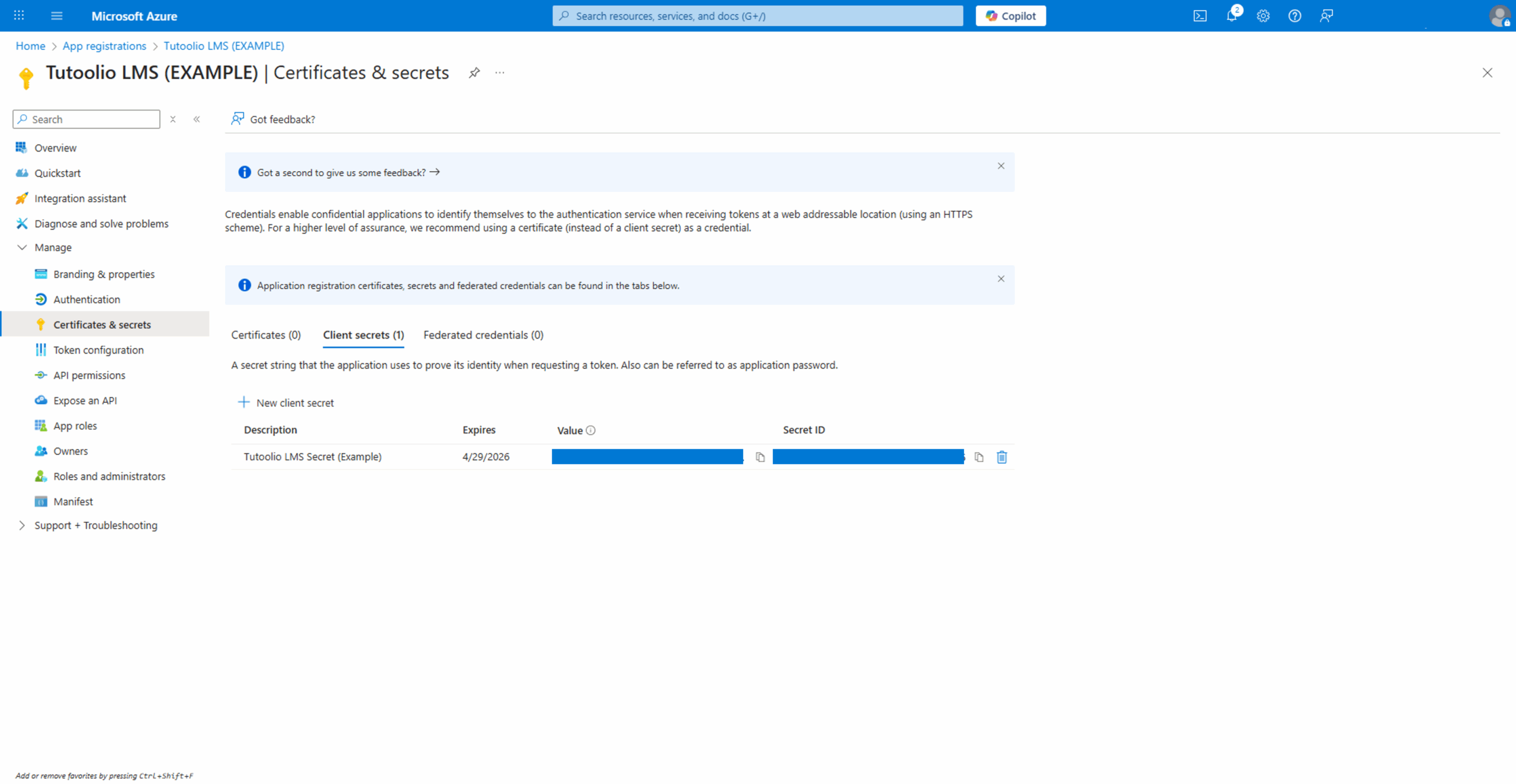
3. Click Add and copy the Value
⚠️ The secret will only be shown once – please copy now!
4. Please send us:
- The Client Secret (secret value, not the ID)
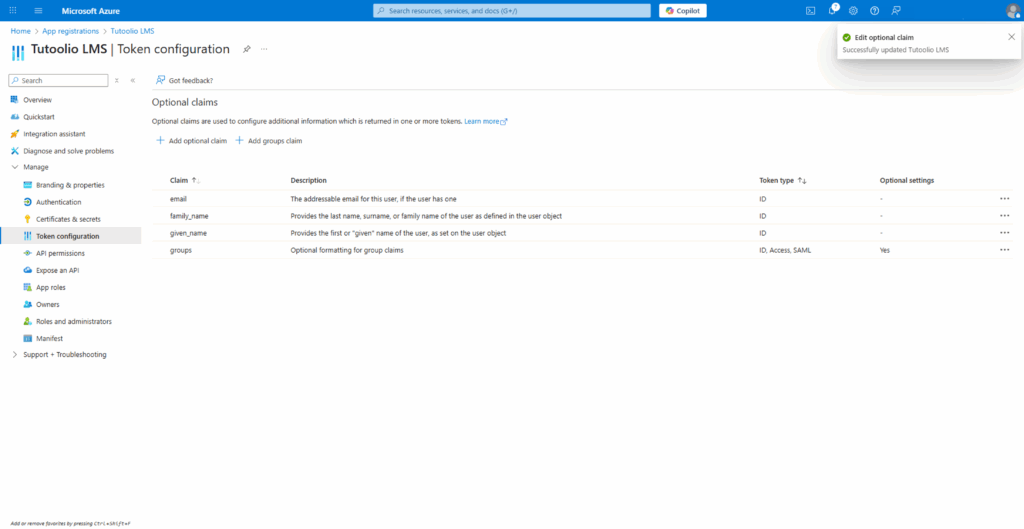
Step 3: Add Claims to Token
Required claims:
1. In the new app, go to: Token configuration
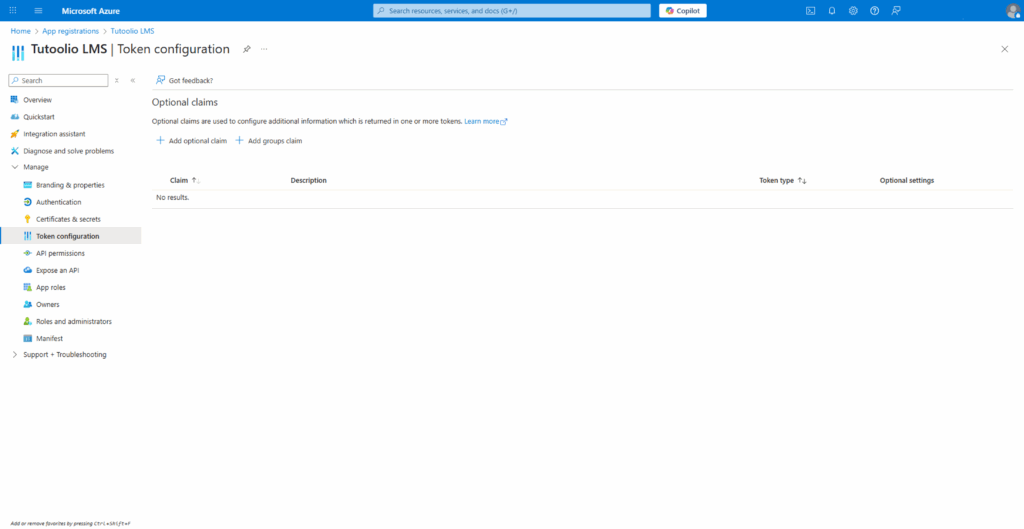
2. Click Add optional claim
3. Select the radio button ID
4. Select the following claims from the claim selection list:
- familiy_name
- given_name
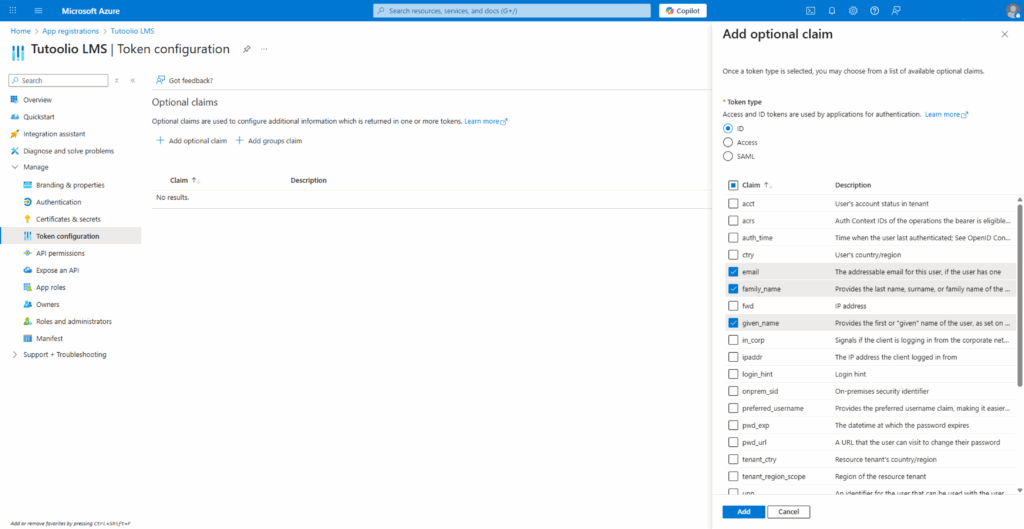
5. Click Add
6. Add optional claimenable: Turn on the Microsoft Graph email, profile permission (required for claims to appear in token
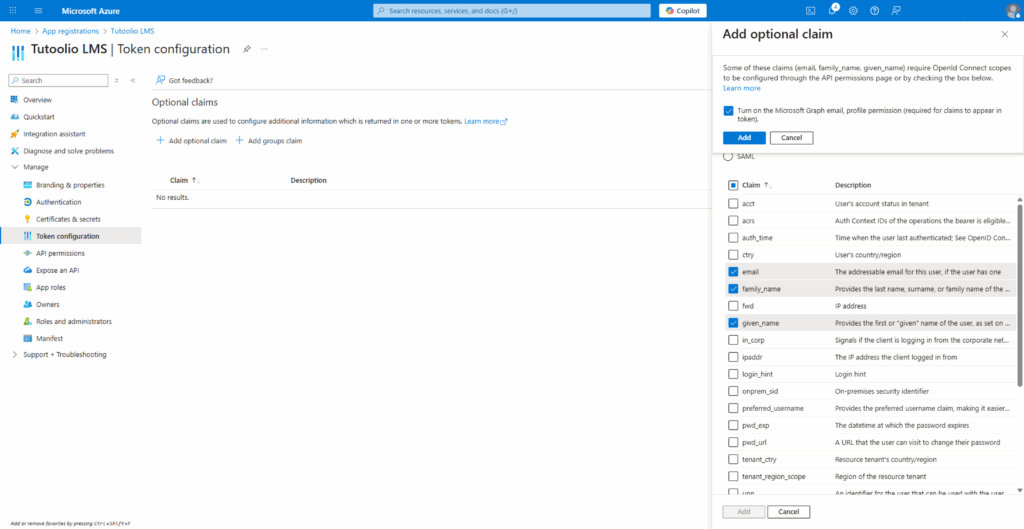
7. Click Add
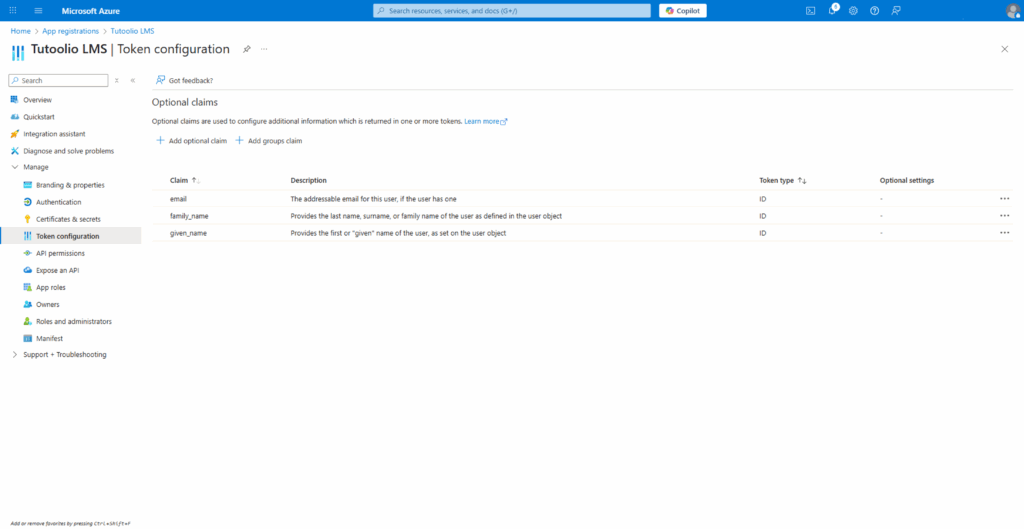
Optional claims if Entra ID groups are to be transferred to the Tutoolio LMS as user tags:
8. Click Add groups claim
9. In Edit groups claim select the groups that should be transferred to the Tutoolio LMS as user tags.
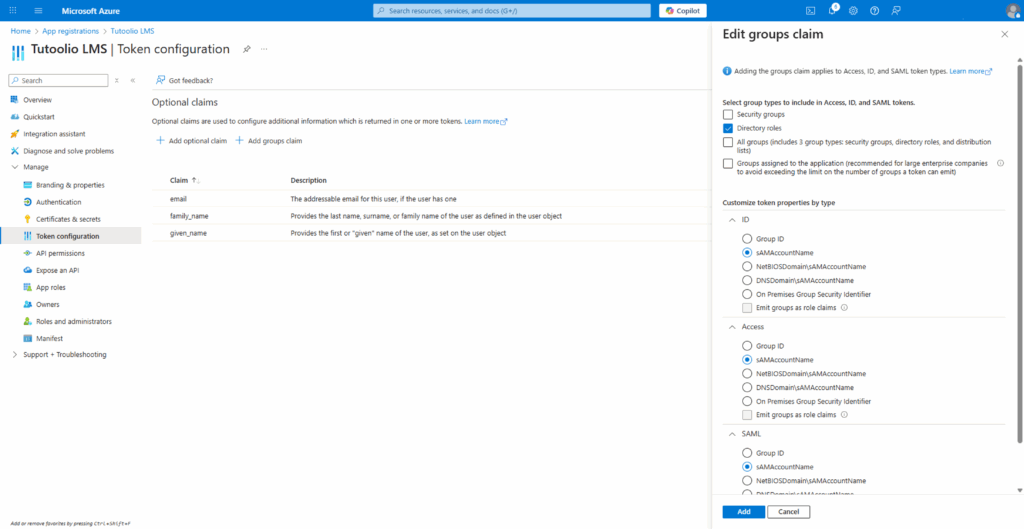
10. Click Add
Summary – Please Provide the Following to Us
Once the steps are completed, please send us:
- ✅ Client ID (Application ID)
- ✅ Tenant ID (Directory ID)
- ✅ Client Secret (Value)
- ✅ Confirmation that the Redirect URI was added
All further configuration steps will be handled by Tutoolio within Keycloak – no additional setup is required on your end beyond the steps listed above.
Please note that some settings or menu structures in Microsoft Entra ID may vary slightly depending on your organization’s tenant configuration or licensing. If you encounter any differences from this guide, feel free to reach out — we’re happy to assist.