Note: You need a secret token from Tutoolio to set up user provisioning via SCIM in Entra ID.
Step 1: Create an Enterprise App
1. Go to Microsoft Entra admin center
2. Open Enterprise apps
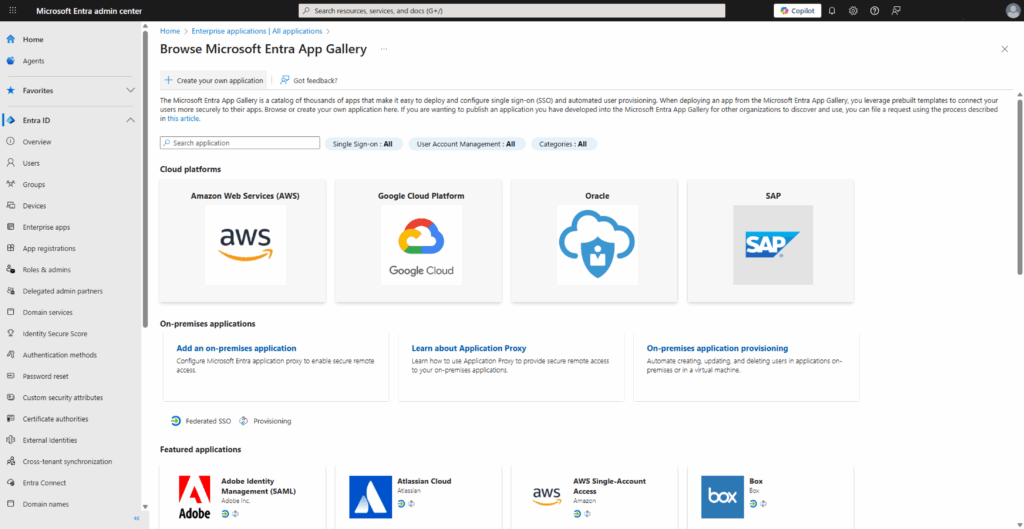
3. Click Create your own application
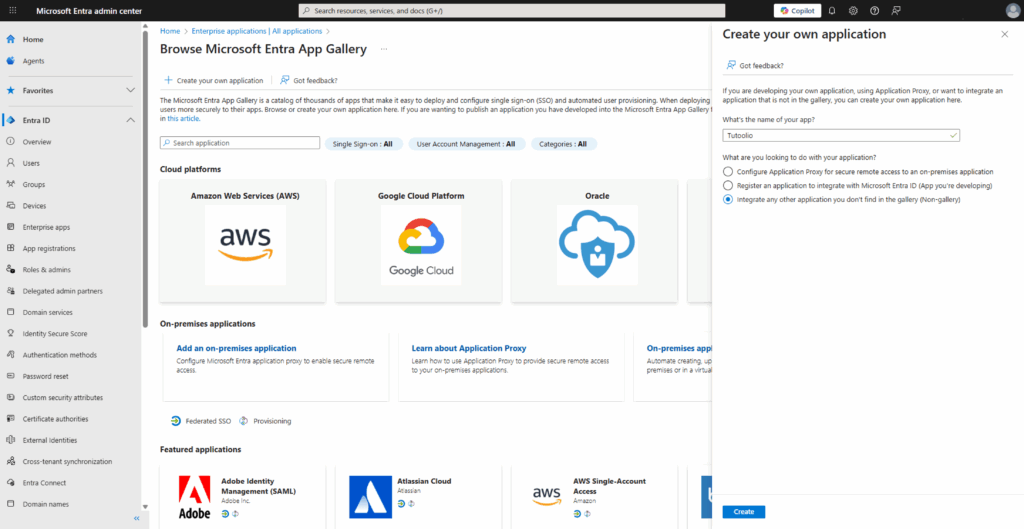
4. Fill in a name:Tutoolio LMS (or similar)
5. Check radio button:Integrate any other application you don't find in the gallery (Non-gallery)
6. Click Create
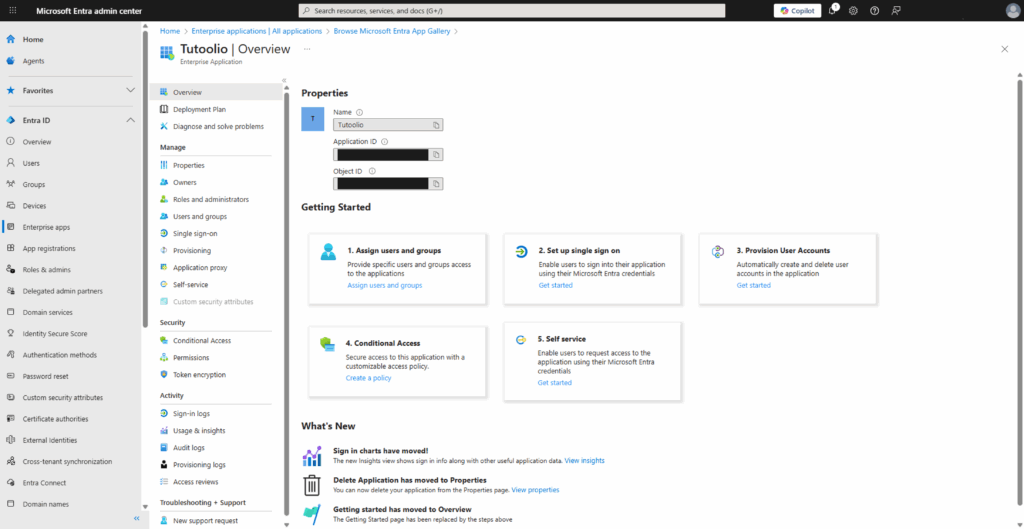
Step 2: Provisioning
1. Click Provisioning in the menu
2. Click the button Connect your application
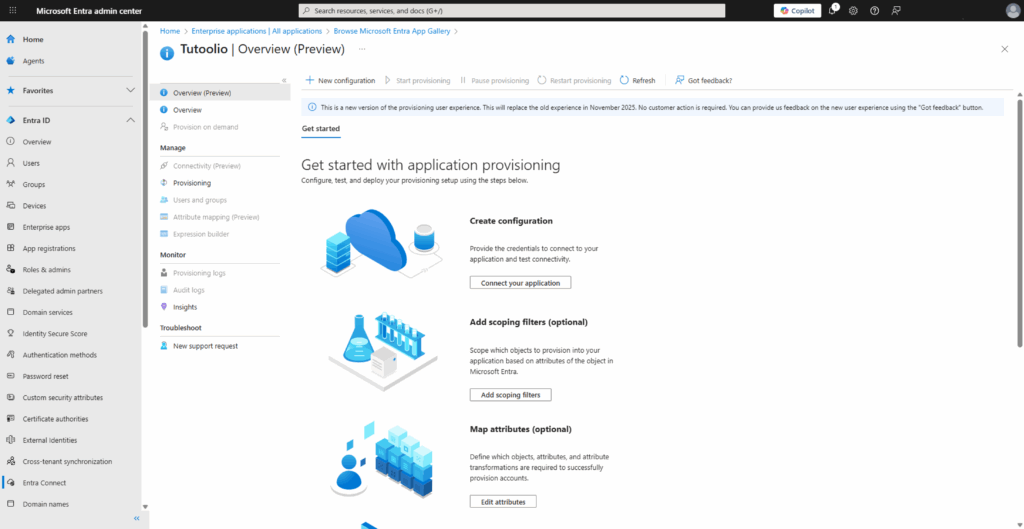
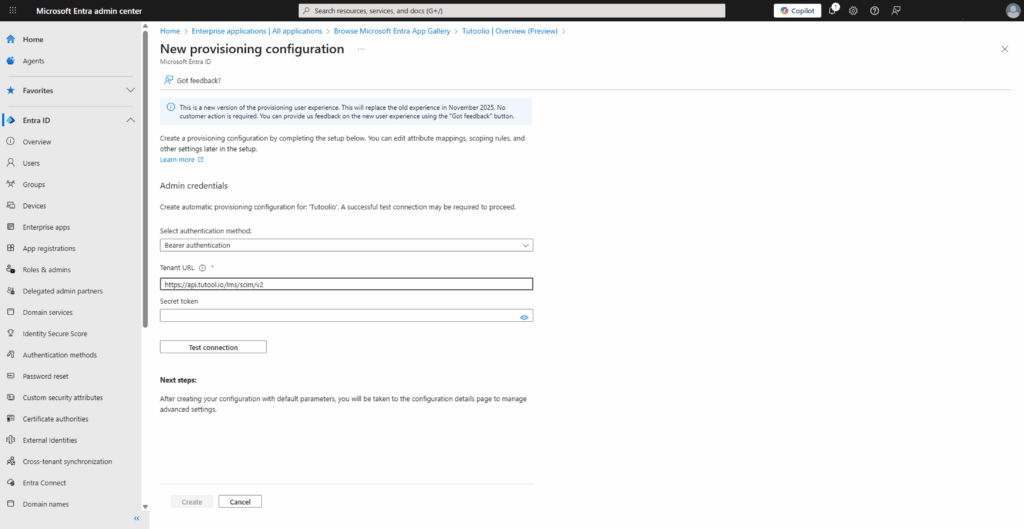
3. Select authentication method:Bearer Token
4. Fill in the Tenant URL:https://api.tutool.io/lms/scim/v2
5. Secret Token:
is provided by Tutoolio
6. Test Connection
Step 3: Attribute Mapping
1. In Provsioning click Attribute mapping in the menu.
2. In Tab Users delete all attributes which are not shown in the screenshot below:
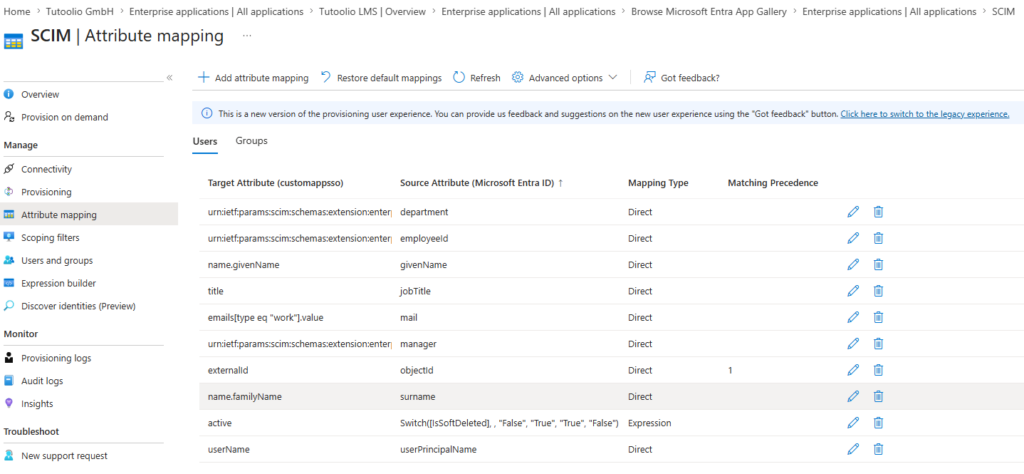
3. In Attribute Mappings make sure:externalID = objectID with Matching precedence = 1
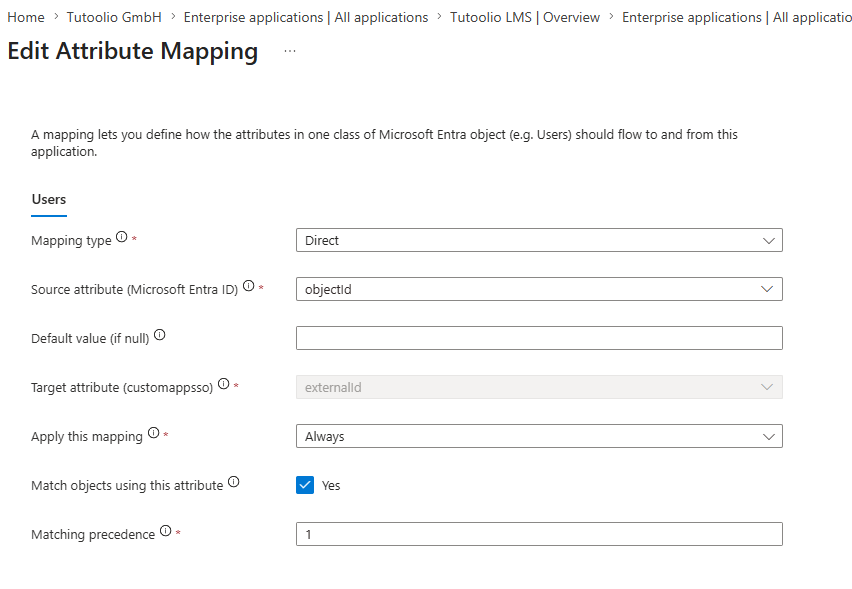
4. Save the changes.
5. Go to Tab Groups:
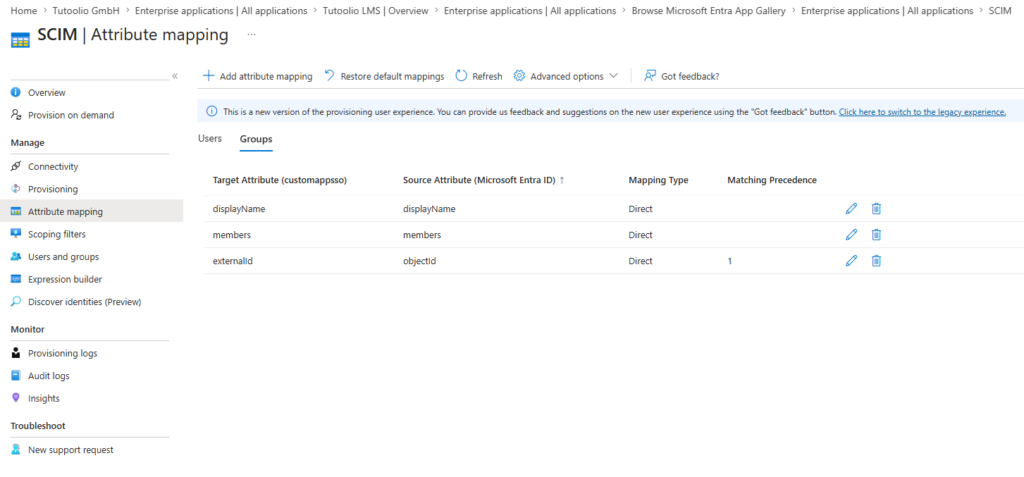
6. In Attribute Mappings make sure:externalID = objectID with Matching precedence = 1
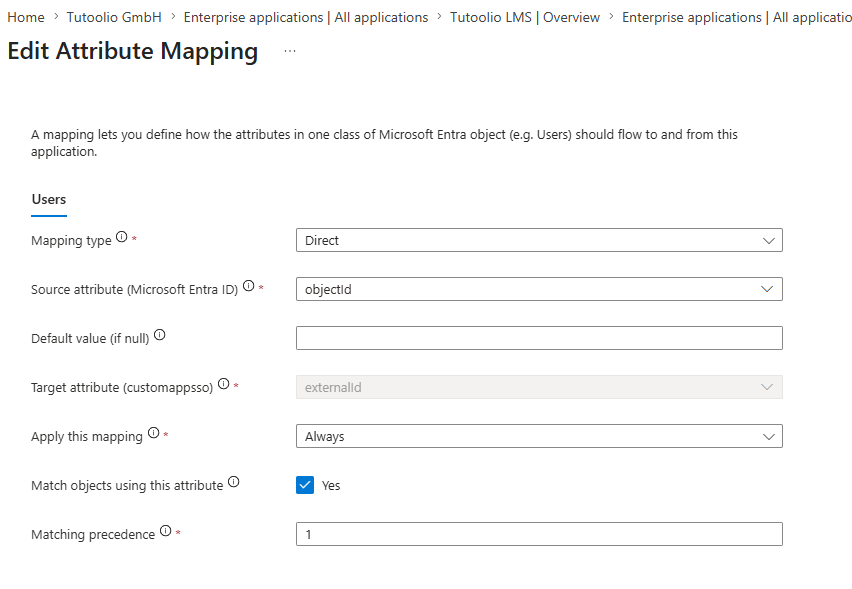
7. Save and go back.
Step 4: Test and start user provisioning
1. Test Provisioning:
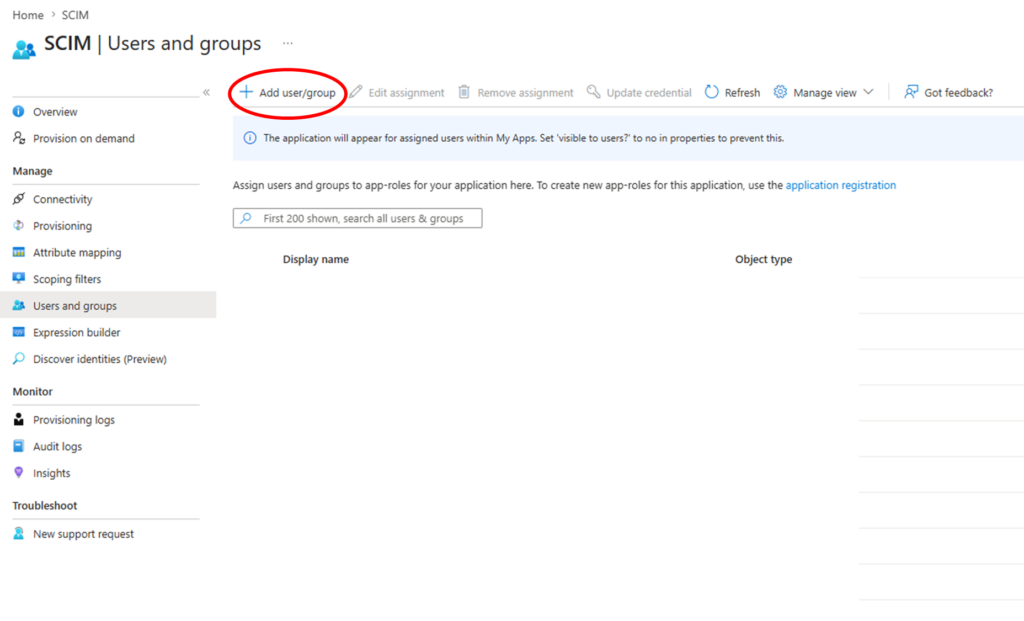
To test the settings go to Users and groups and click on Add user/group to add a user to the enterprise app:
2. In menu go to Provision on demand.
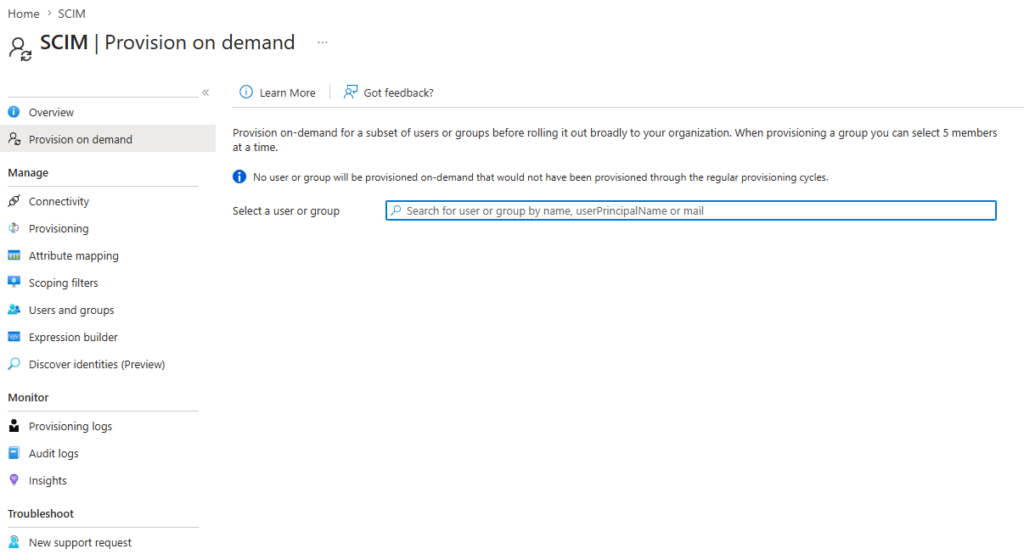
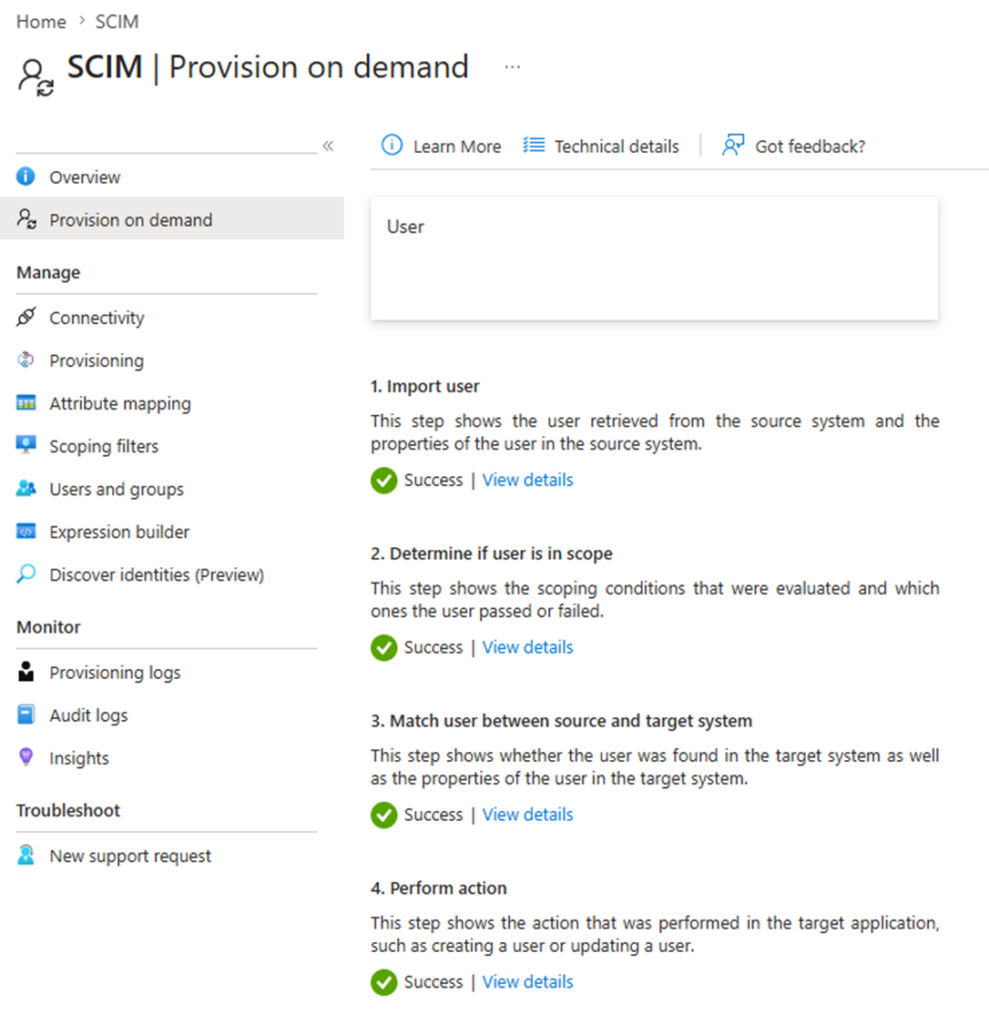
3. Choose a user and click on Provision.
The results should look like the screenshot below:
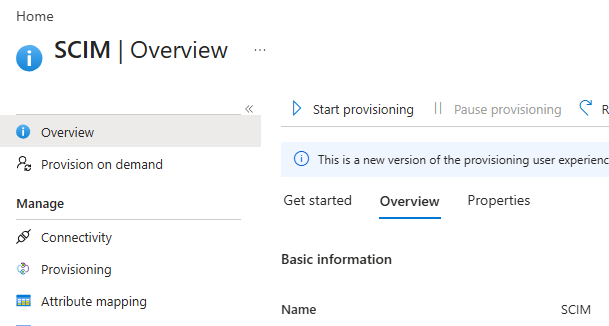
4. If the test was successful you can start the provisioning by going to Overview in the menu and click Start Provisioning:
Note: Only users and groups which assigned to the enterprise app will be provisioned!