1. First, create an Enterprise Application in the Entra ID and set up SCIM for user provisioning.
2. Open the Enterprise Application you created for Tutoolio in the Entra ID Admin Portal.
3. Navigate to the menu item „Single Sign-on“ in the menu for the Enterprise Application.
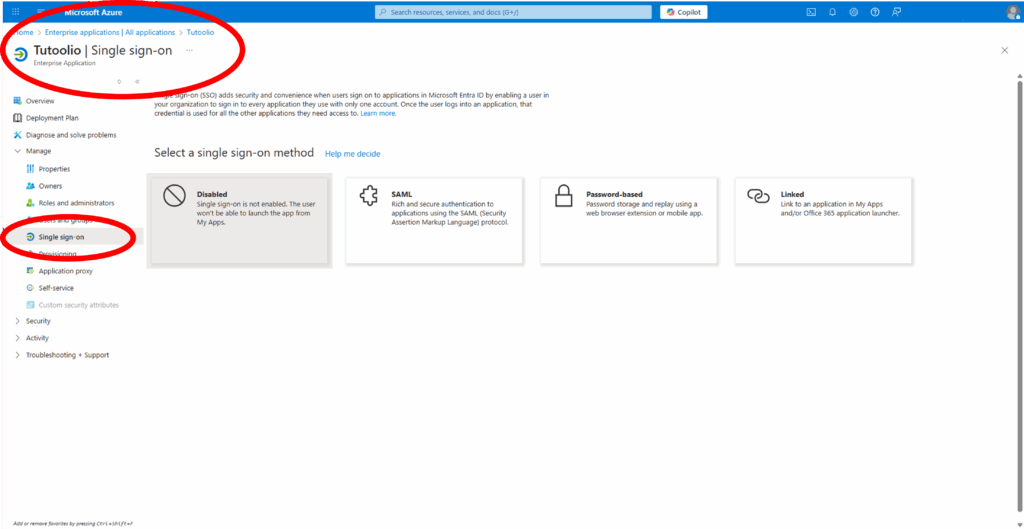
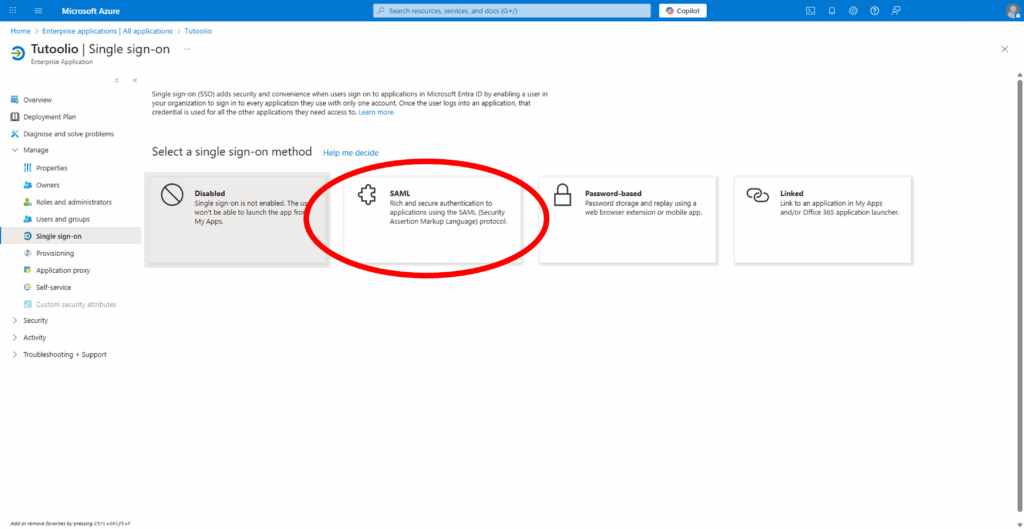
4. Under “Select a single sign-on method,” click on the SAML tile:
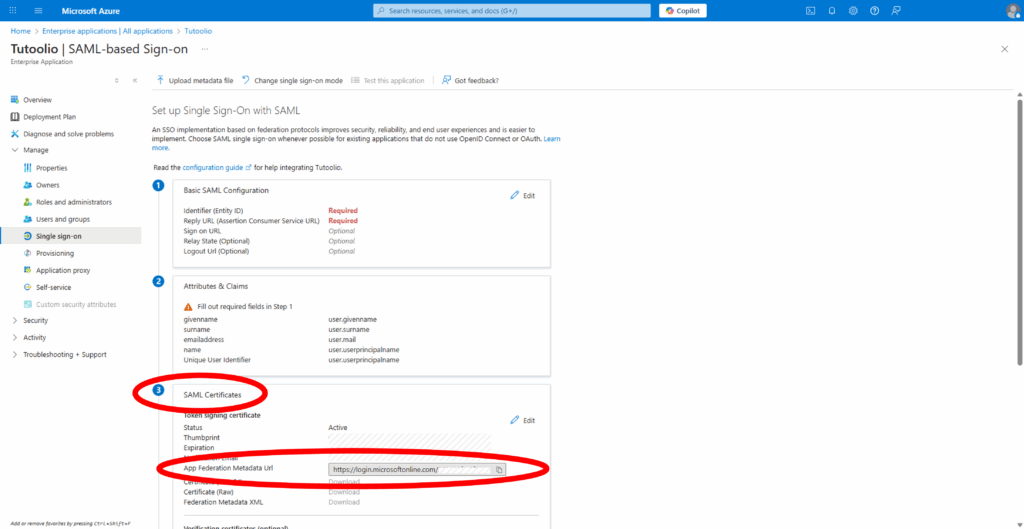
5. In the “Set up Single Sign-On with SAML” section, go to Step 3: SAML Certificates.
Copy the App Federation Metadata URL and send it to Tutoolio.
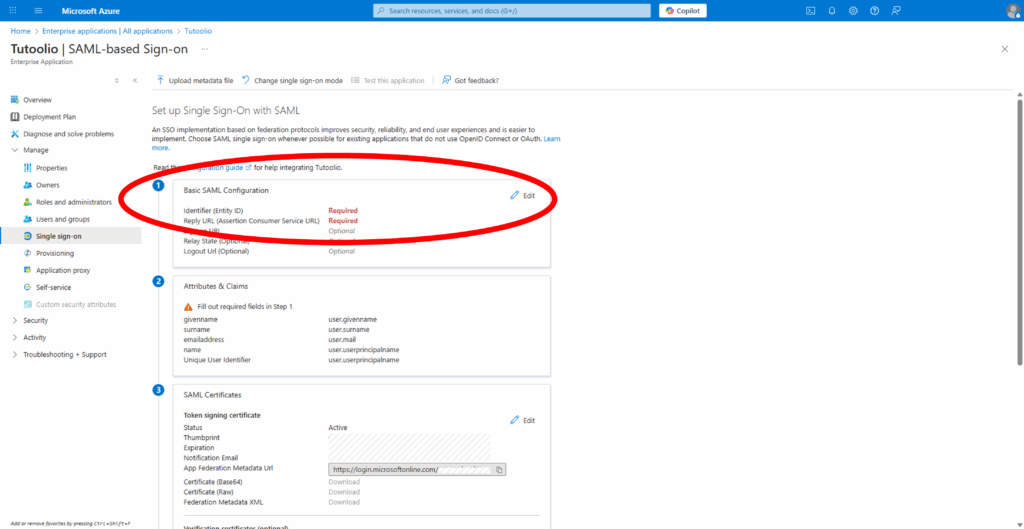
6. Next, you will receive the following values from Tutoolio:
- Reply URL (Assertion Consumer Service URL)
- Identifier (Entity ID)
In the “Basic SAML Configuration” section, click Edit and enter the values.
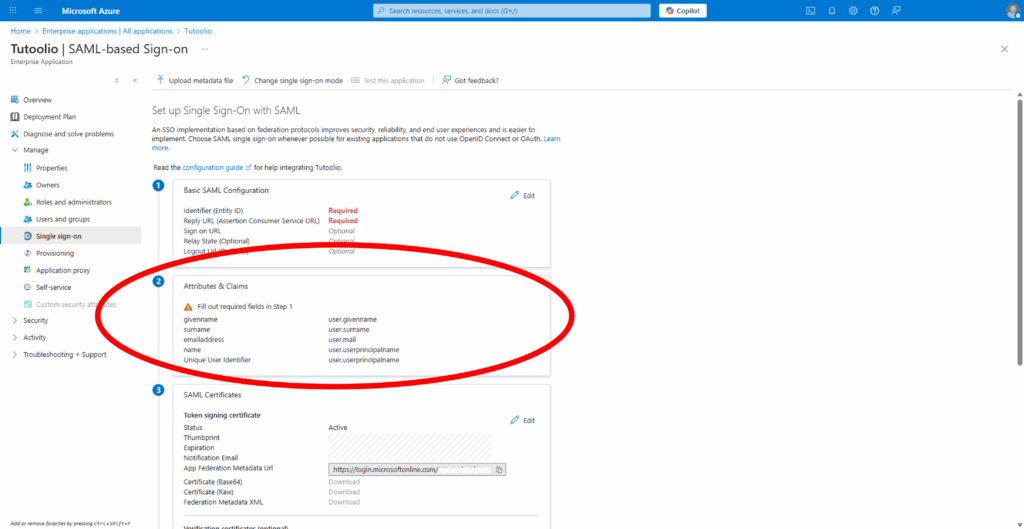
7. The “Attributes & Claims” settings are usually preconfigured and can remain unchanged.
Make sure they match the screenshot provided:
8. Test the configuration to ensure the Single Sign-On setup works correctly.